
PAS · EM133-XM data and event logs
Event Log: read the meter's operational history
The Event Log helps reconstruct what the meter reported about configuration changes, resets and diagnostics. It is a chronological record to interpret with configuration and measurement evidence, not a substitute for the conventional data logs.
Manufacturer source review complete; demonstration-specific verification and editorial acceptance pending.
Before you start
- Use the intended EM133-XM site and verify its model, connection and firmware before treating settings as live.
- Complete the existing Upload and verify your logs before changing memory lesson before any operation that can alter or remove retained records. Upload Setups and Upload Logs preserve different information.
Read an event as time, cause and effect
The family manual describes time-tagged configuration, reset and diagnostic events, shown one event per row. The XM protocol record includes time, event number, source/cause, effect and a triggered-value field.
Examples in the protocol dictionary include setup changed, RTC set, log file cleared, power down and power up. The presence of a named event is evidence of that recorded condition; it does not by itself prove the root cause of every nearby measurement change.
Upload and open the event history
Use a clearly named history database, separate from the site configuration file. Preserve the unfiltered archive for investigation.
Select the intended meter and date range
With communication verified, choose the intended site, enable online operation and open Logs > Upload Logs. Select the destination database and use Select Logs to include Event Log. Review From and To filters.
Open the saved event table
Use File > Open, select Access Database (*.mdb), choose the archive and the Event Log table, then Open. Confirm the first and last timestamps and representative event rows.
Record the context
Keep the relevant configuration, clock reference and related data-log time range with the archive. Note missing ranges or upload errors before drawing a conclusion.
Use filters and sorting without losing evidence
A filter narrows what PAS displays; it does not erase the rows in the database. Sorting changes their display order. These controls are useful for reviewing a focused question while retaining the original archive.
Filter by event cause
In the Event Log report, right-click and select Filter, or use the Filter button. Select the causes relevant to the investigation and confirm. State when a filtered subset is being shown.
Choose a clear order
Right-click the report and choose Sort, or use the Sort button. Choose the required order and confirm. Use the timestamp and event details, not screen position alone, to reconstruct a sequence.
Restore the broad view
Remove the narrowing filter when checking completeness. A filtered screen with no rows is not proof that the meter recorded no events.
Use the Event Log to check a maintenance sequence
ILLUSTRATIVE review: after an authorised RTC synchronisation or setup change, upload the Event Log and inspect the relevant recorded event and surrounding rows. Compare this with the performed action and current readback.
The protocol lists RTC set and setup changed effects, but the lesson must not claim a specific event appeared until the actual archive is inspected. A setup-changed event does not establish that every intended value is correct; receive the relevant settings and compare them.
Clock changes can affect how nearby timestamps are interpreted. Preserve the intended time reference and the maintenance record instead of assuming local PC time is always the correct reference.
Preserve history and recognise the limits
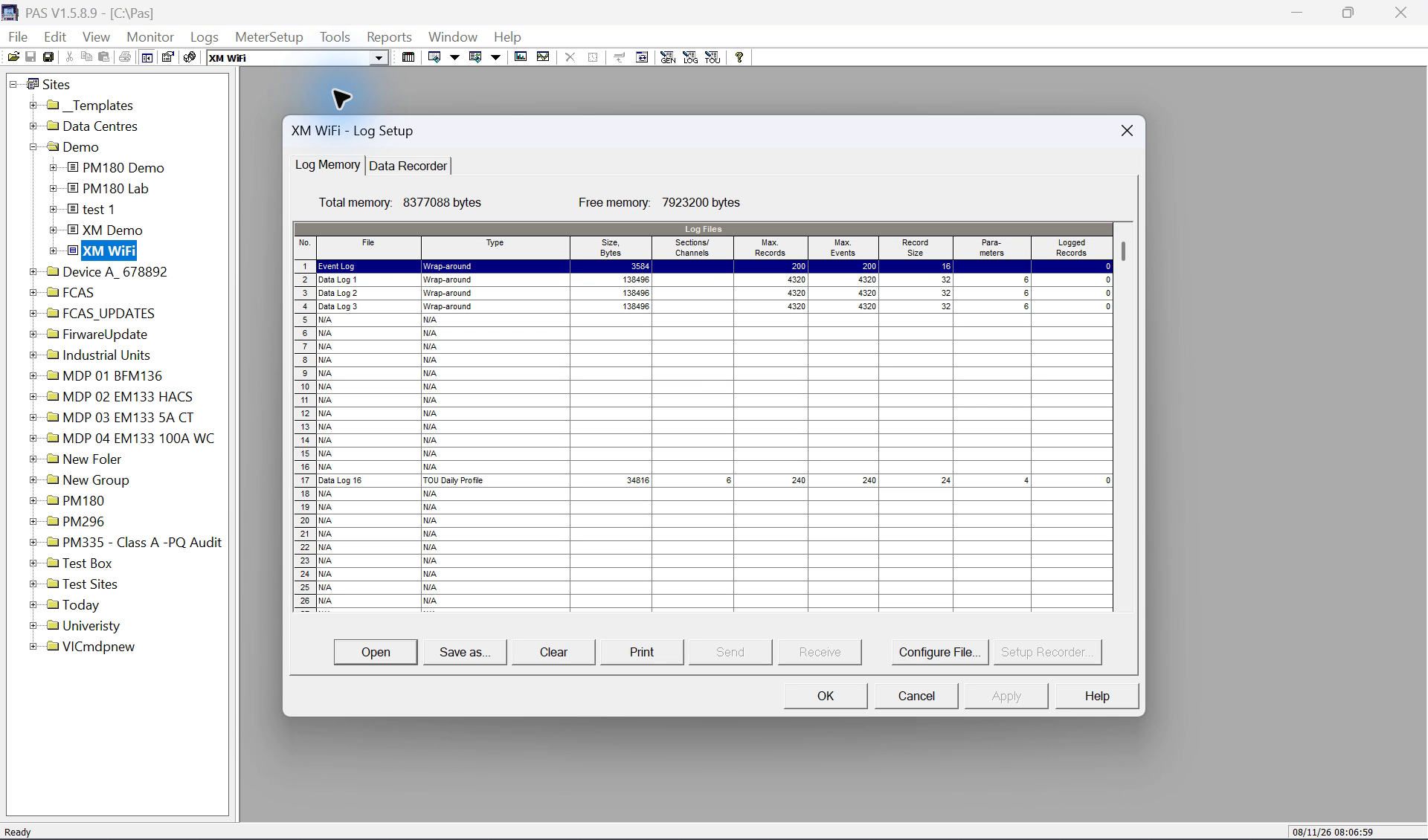
The Event Log has its own allocation and file behaviour. Wrap-around can replace the oldest records; non-wrap can stop recording when full. Review actual capacity and upload before required history is lost.
Clear Event Log, clear a data log and reset energy/demand counters are different operations. Upload and verify the required history first; do not clear the Event Log as a routine communication test.
Generic PAS documentation describes links to related waveform or data records on supported devices. That software feature does not establish an EM133-XM historical waveform recorder or guarantee that every event has a linked record. Use the actual model capabilities and archived data.
Limits and checks
- The written procedure is not evidence that a live setting was changed or that new records were generated. Check the selected device, firmware and current readback.
- The procedure does not claim that any named event has been observed in the current demonstration. Generic PAS waveform controls are not evidence of fitted or enabled model-specific recording capability.
- The recorded supplement shows saved configuration. A successful Event Log report opening is not demonstrated; archive readability must be checked before any clearing.
Check your understanding
Does filtering delete events from the archive?
Does an RTC set event prove all required logging timestamps are correct?
Does an empty filtered view prove the Event Log is empty?
Sources
- Source 1. EM13x Installation and Operation Manual — Event Log (opens in a new tab)
Printed page 121 / PDF page 124 and printed page 156 / PDF page 159
Model and firmware limits remain applicable.
- Source 2. EM133 / EM133-XM Modbus Reference — event records and meanings (opens in a new tab)
Printed/PDF page 72, Event Log Records; pages 81–82, formats F19–F22
Model and firmware limits remain applicable.
- Source 3. PAS Getting Started — upload and open log files (opens in a new tab)
BG0337 Rev. A2, printed/PDF pages 21–22 and 25; configuration upload page 10
Model and firmware limits remain applicable.
- Source 4. PAS Getting Started — event and data views (opens in a new tab)
Printed/PDF pages 26 and 30; EM13x data-trend controls printed 157 / PDF 160
PAS is multi-model software; generic waveform-linking features are not an EM133-XM historical-waveform guarantee.
- Source 5. EM13x Installation and Operation Manual — memory allocation (opens in a new tab)
Printed pages 119–121 / PDF pages 122–124, section 5.5
Model and firmware limits remain applicable.
- Source 6. EM13x Installation and Operation Manual — reset scope (opens in a new tab)
Printed pages 130–131 / PDF pages 133–134
Model and firmware limits remain applicable.
Revision and review details
| Revision | Change and reason | Review / supersedes |
|---|---|---|
| 20261108-draft-v1 8 November 2026 | Added a detailed model-scoped log lesson with source references and learner checks. Explain each log's purpose, PAS controls and interpretation without assigning invented factory roles. | Manufacturer source review complete; independent verification pending. None |