
PAS · EM133-XM data and event logs
Data Log 16: understand the daily Billing/TOU profile
Data Log 16 serves a different purpose from the conventional recorders: it holds the daily Billing/TOU profile. Its structure follows the enabled billing energy and maximum-demand profiles, rather than an arbitrary list of ordinary snapshot fields.
Manufacturer source review complete; demonstration-specific verification and editorial acceptance pending.
Before you start
- Use the intended EM133-XM site and verify its model, connection and firmware before treating settings as live.
- Complete the existing Upload and verify your logs before changing memory lesson before any operation that can alter or remove retained records. Upload Setups and Upload Logs preserve different information.
Recognise a daily register profile
The unified guide states that new profile records are added automatically every day at midnight. The file has sections for configured energy and maximum-demand registers; each section can include summary and tariff readings.
A daily record is not a five-minute interval profile. The documented fields are register readings. Do not label them daily consumption merely because they were saved daily; establish the reading's meaning, reset behaviour and any required calculation first.
Configure the billing sources and profile flags first
The register/profile setup determines which sections exist. Complete it before allocating the daily-profile file, because memory requirements depend on the selected profiles and tariffs.
Inspect Billing/TOU Registers
Open MeterSetup > Energy/TOU and select Billing/TOU Registers. Review the Source Input and intended register, measurement units and any applicable multiplier. Use actual XM options rather than a base-model register-count assumption.
Read the profile flags
Inspect TOU, Use Profile, Dmd Profile and Sum Profile. Confirm which energy registers, maximum-demand profiles and summary totals are intended. A source that is not configured, or a profile that is not enabled, need not create a downloadable section.
Review the tariff schedule
Inspect TOU Daily Profiles and TOU Calendar for the intended day types and seasonal/exception schedule. A tariff label in a report must be interpreted using this configuration.
Inspect the daily file's allocation
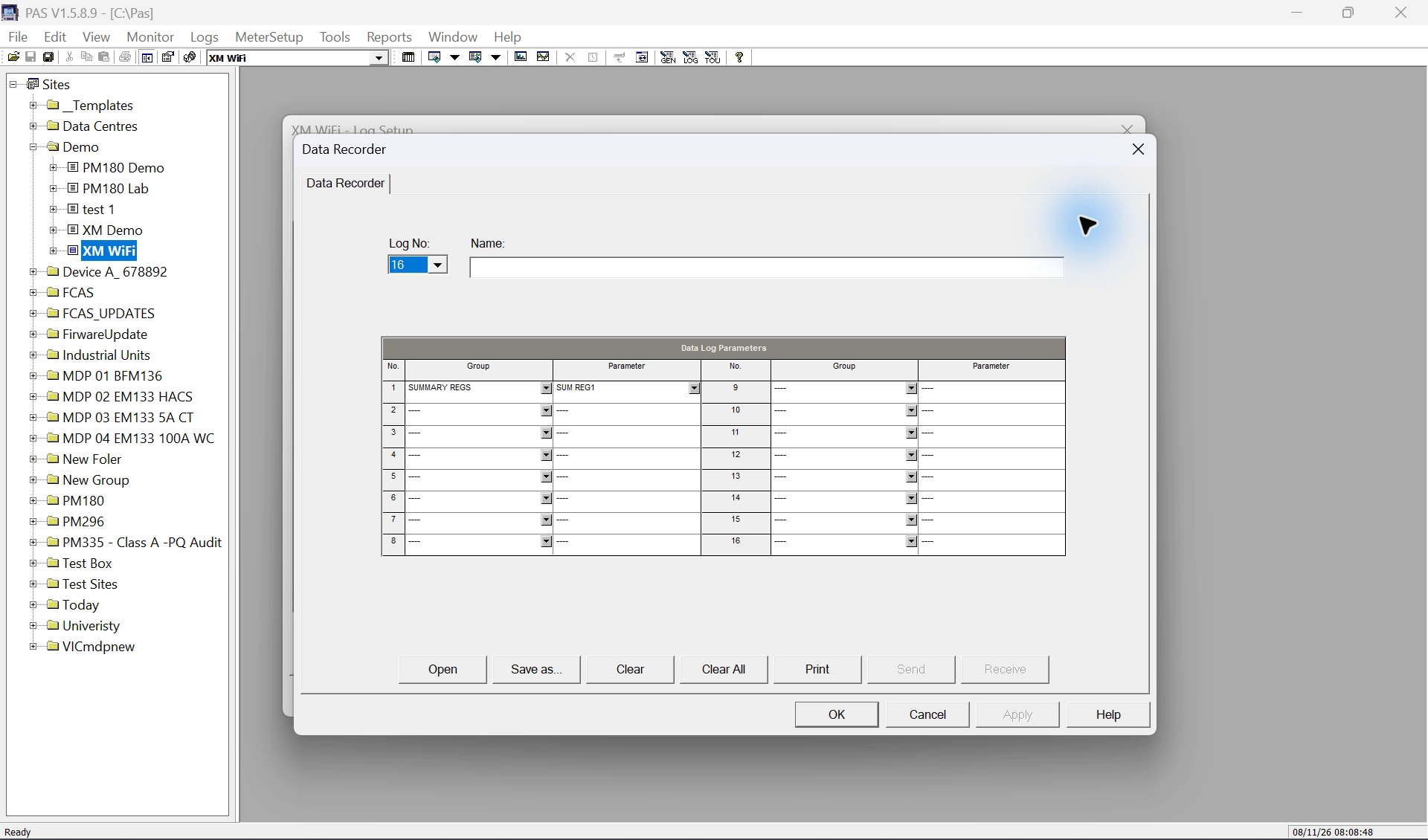
Open MeterSetup > Memory/Log > Log Memory and inspect Data Log 16. Its file type should correspond to the intended TOU Daily Profile use; verify actual settings before describing it as active.
The family procedure selects the number of season tariffs and includes an additional summary parameter when summary totals are recorded. The sections arise from the Billing/TOU profile configuration. Maximum-demand profiles add to the allocation.
Use the actual reported section, parameter and record sizes for memory planning. Older source tables contain inconsistent XM section limits; this lesson gives no universal maximum or factory retention guarantee.
Read sections and tariff columns correctly
The Data Log 16 setup view can show the first section's parameter list. That view alone does not prove that every enabled register and demand section has been inspected.
In the uploaded archive, identify the register/channel and whether its section represents energy or maximum demand. Read the summary and individual tariff fields with their actual units. Compare corresponding dates and sections, not unrelated rows.
| Item | Meaning to confirm |
|---|---|
| Energy section | Which billing source and energy register it represents. |
| Demand section | Which enabled daily maximum-demand profile it represents. |
| Summary/total field | The total register reading, when included. |
| Tariff fields | The readings for the configured tariff registers. |
| Timestamp | The meter's daily recording time and configured time reference. |
Upload every required section and verify the clock
Use Logs > Upload Logs > Select Logs to include the daily Billing/TOU profile. Review the requested date range, then reopen the archive and verify the required register/profile sections and their time coverage.
Check the meter's Local Settings and the application's intended time reference before interpreting midnight records or synchronising the RTC. Do not change the clock simply to manufacture a daily record for training.
No row immediately after setup may simply mean that the next daily boundary has not occurred. Verify enabled profiles, file allocation, clock and upload selection before diagnosing missing data; do not clear the file as the first test.
Limits and checks
- The written procedure is not evidence that a live setting was changed or that new records were generated. Check the selected device, firmware and current readback.
- No claim is made about tariff approval, billing acceptance, NEM suitability or automatic NEM12 export. Actual configured registers and retained sections must be checked on the selected meter.
Check your understanding
Is Data Log 16 a conventional five-minute snapshot log?
Show answer
No. It is the daily Billing/TOU profile, updated automatically at midnight according to the manufacturer guide.
What should be configured before allocating this profile file?
Does a midnight energy reading automatically equal that day's consumption?
Show answer
No. Confirm register semantics and reset history before any subtraction or daily-use calculation.
Sources
- Source 1. EM133 / EM133-XM Modbus Reference — daily profile contents (opens in a new tab)
Printed/PDF page 15 and pages 74–75, Billing/TOU Daily Profile Data Log
Daily midnight recording; enabled energy and demand sections contain summary/tariff register readings. Do not infer daily-consumption subtraction/reset rules or a universal maximum section count.
- Source 2. EM13x Installation and Operation Manual — Billing/TOU setup (opens in a new tab)
Printed pages 114–118 / PDF pages 117–121, section 5.4; daily file printed 123 / PDF 126
Use the actual XM register/profile options; base-family register counts are not promoted to XM limits.
- Source 3. EM133 / EM133-XM Modbus Reference — log organisation and XM files (opens in a new tab)
BG0640 Rev. A1, printed/PDF pages 14–16 and 63–64
The file-setup table explicitly includes XM Data Logs 2 and 3; older generic file-ID/action tables are incomplete for these files.
- Source 4. EM13x Installation and Operation Manual — memory allocation (opens in a new tab)
Printed pages 119–121 / PDF pages 122–124, section 5.5
Model and firmware limits remain applicable.
- Source 5. PAS Getting Started — upload and open log files (opens in a new tab)
BG0337 Rev. A2, printed/PDF pages 21–22 and 25; configuration upload page 10
Model and firmware limits remain applicable.
- Source 6. EM13x Installation and Operation Manual — local time (opens in a new tab)
Printed pages 111–112 / PDF pages 114–115
Model and firmware limits remain applicable.
Revision and review details
| Revision | Change and reason | Review / supersedes |
|---|---|---|
| 20261108-draft-v1 8 November 2026 | Added a detailed model-scoped log lesson with source references and learner checks. Explain each log's purpose, PAS controls and interpretation without assigning invented factory roles. | Manufacturer source review complete; independent verification pending. None |