
 Video
PAS · New site, backup and online/offline editing
Upload the setups, then duplicate the backup
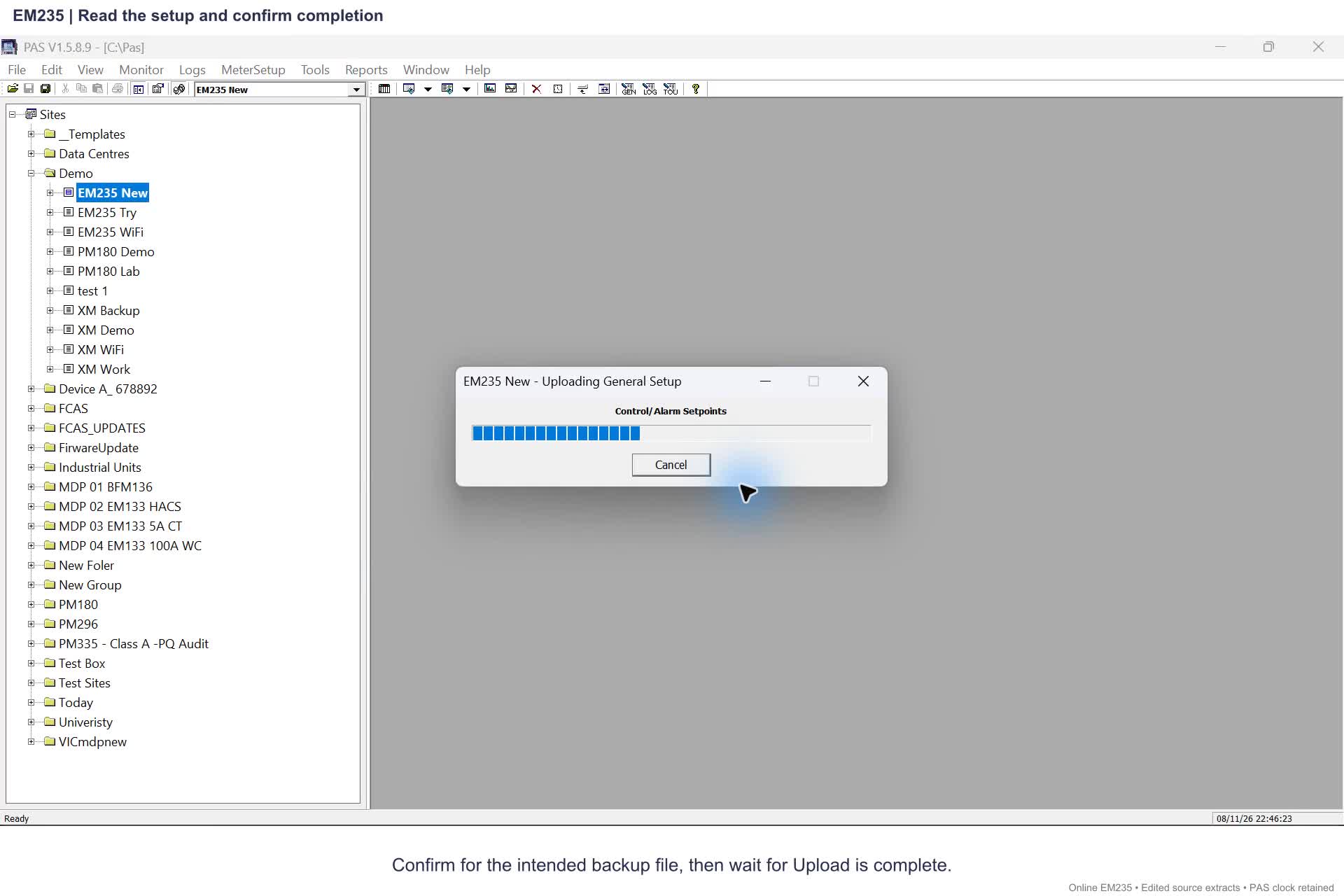
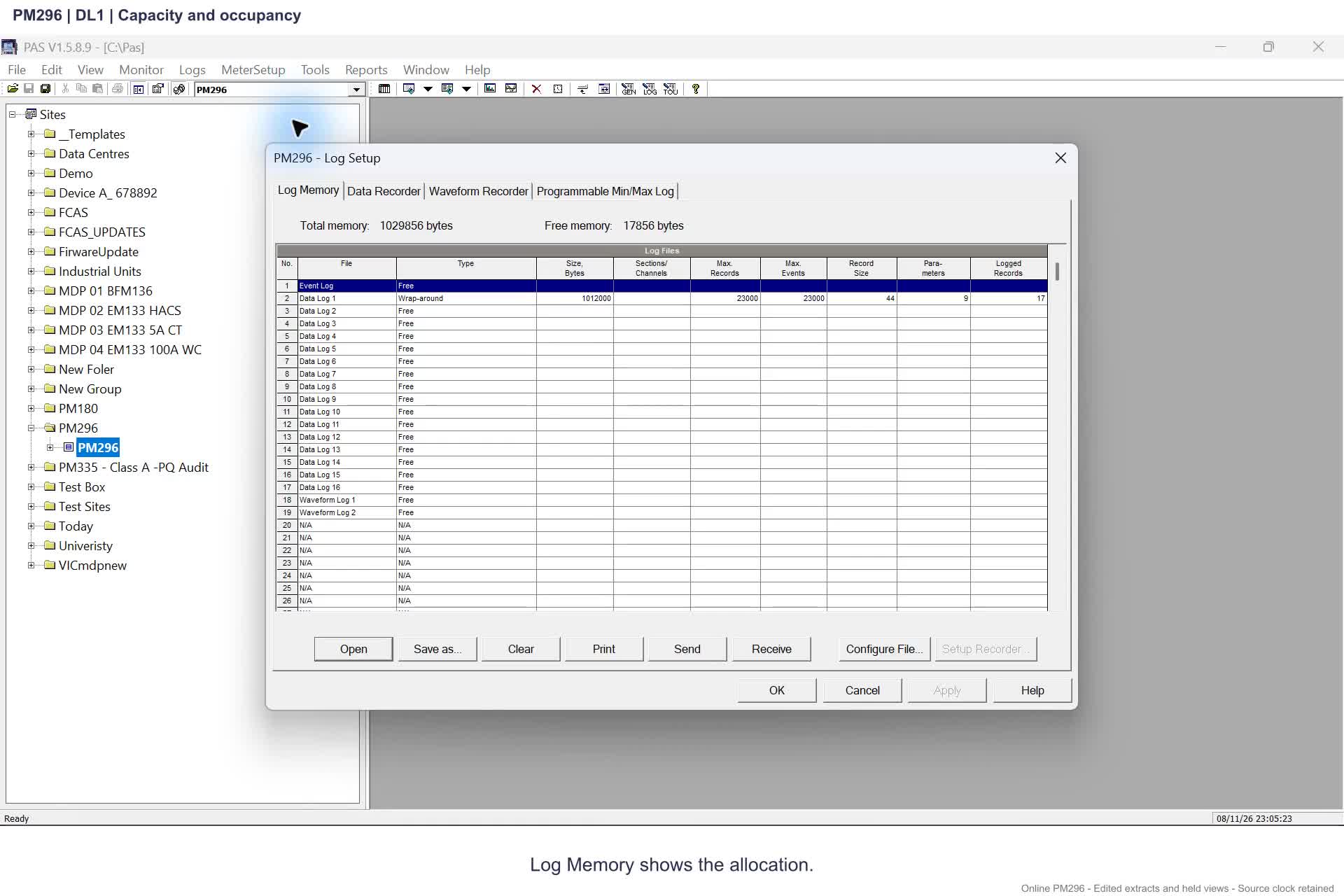
Watch an online setup upload
Choose the EM235 or PM296 recording for its actual connection, Upload Setups result and existing recording configuration. These videos supplement the EM133-XM backup and Duplicate instructions below; they do not demonstrate a new Duplicate or CT change.
Upload the meter’s current configuration into the new site before editing. Then use Duplicate to make a working copy, leaving the uploaded baseline available for comparison.
Written draft; edited recording and full CT comparison pending.
Before you start
- Complete Create a blank Site Config file and identify the meter.
Upload into the intended backup file
Check the destination
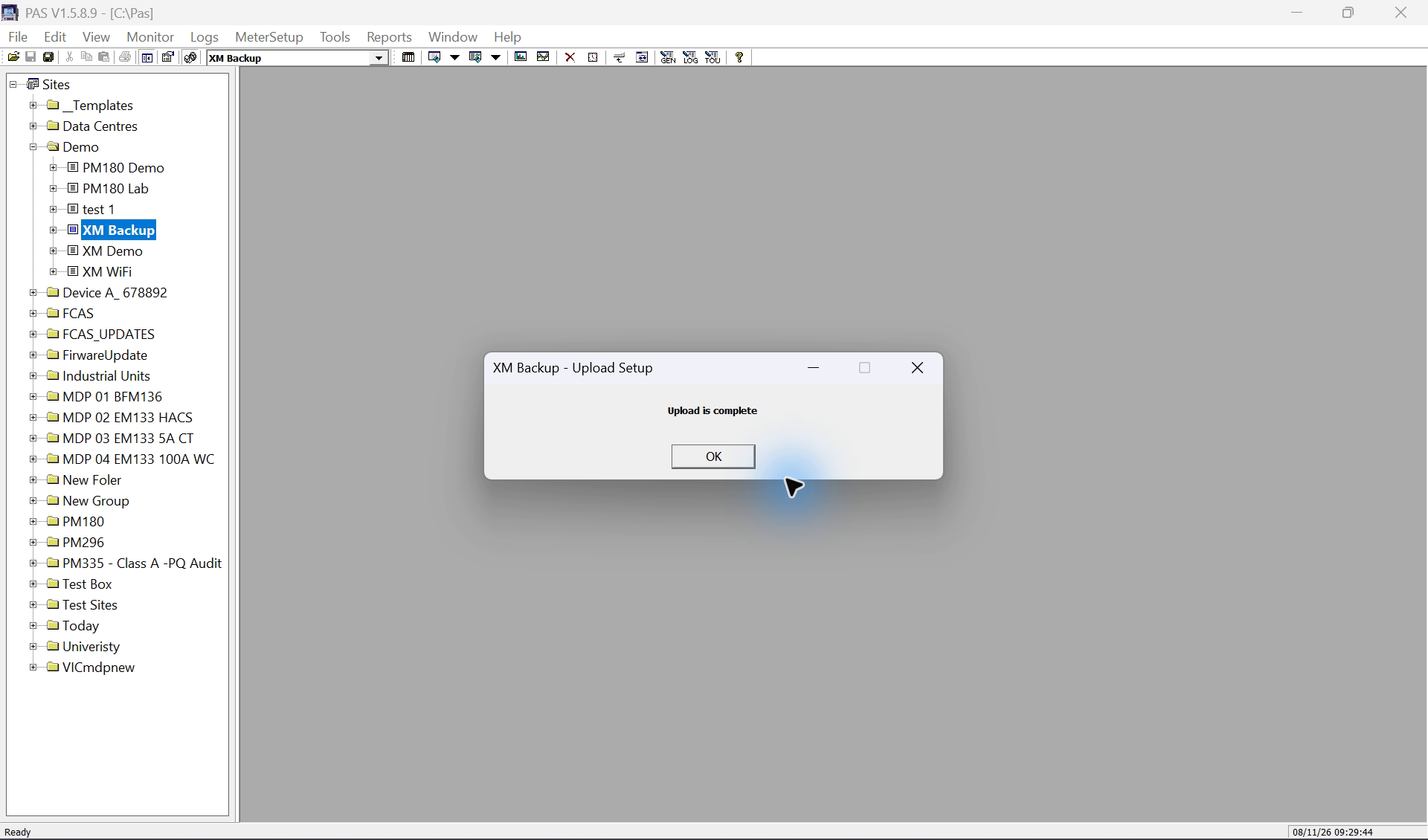
Confirm the new backup site is selected and online. Select MeterSetup > Upload Setups.
Read the overwrite warning
PAS warns that the current contents of the site database will be overwritten. Confirm only when the selected database is the intended new backup file. This operation retrieves configuration from the meter into that file.
Wait and inspect
Wait for Upload is complete. Reopen key setups in offline mode and check that the stored values match the meter values you read. Retain the backup with the meter identity and date in your maintenance record.
Use the native Duplicate function
Keep the backup selected
Return to Tools > Configuration > Sites with the uploaded backup as the current site.
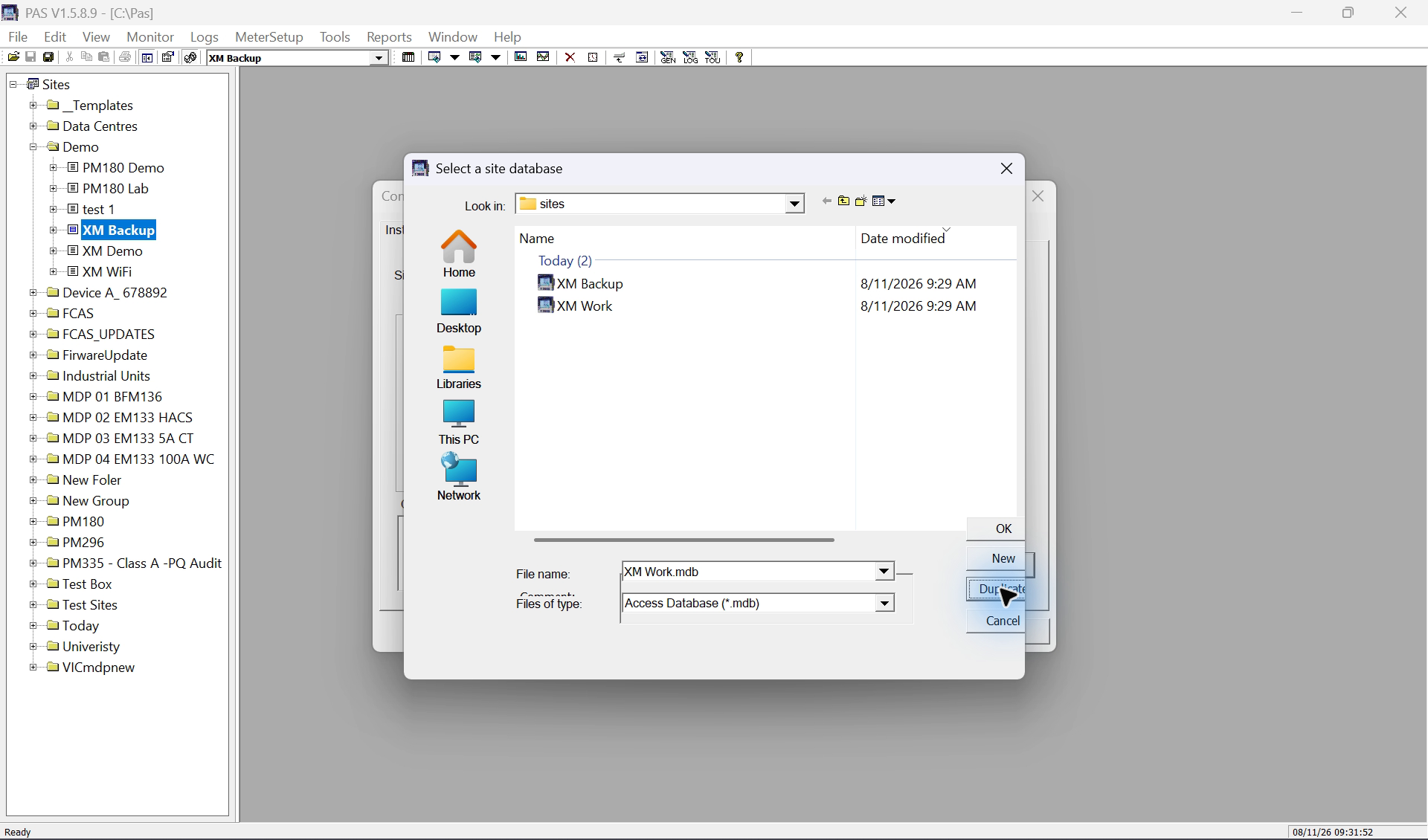
Enter a different filename
Enter XM Work.mdb as the new filename. If an existing file row remains selected, clear that selection before entering the new name. In the practice run, the selected old row caused PAS to keep reporting that the destination already existed.
Select Duplicate
Select Duplicate, then select the new XM Work database and confirm OK. Duplicate is the copy operation in this dialog; New creates a blank site.
Check the working copy
Confirm the selected site is XM Work. Inspect its model, device address, IP address, port and key offline setup values before editing. Keep XM Backup unchanged.
What the backup does and does not contain
| Operation | Purpose |
|---|---|
| Upload Setups | Retrieve the meter configuration into the selected site database. |
| Duplicate | Create a separate working copy of the current site database. |
| Upload Logs | Retrieve historical records into a log database; this is separate from the setup backup. |
| Download Setups | Program the meter from a site database. It is not the backup operation and is not needed for this exercise. |
Limits and checks
- The practice run completed the upload and native Duplicate. The two resulting database files matched immediately after duplication; later edits belong in the working copy.
Check your understanding
The upload warning names a site you intend to preserve. Should you continue?
Can a setup backup replace an archive of the Event Log and Data Logs?
Should the backup and working copy have the same filename?
Sources
- Source 1. PAS Getting Started — creating a site (opens in a new tab)
BG0337 Rev. A2, printed/PDF page 6, creating a site
New creates a local site database. Select the actual model and instrument options.
- Source 2. PAS Getting Started — Ethernet connection (opens in a new tab)
BG0337 Rev. A2, printed/PDF page 9, Ethernet communication
Connection settings identify how PAS reaches the meter; they do not retrieve its configuration.
- Source 3. PAS Getting Started — local files and meter setups (opens in a new tab)
BG0337 Rev. A2, printed/PDF page 10, sections 3.2–3.3
Save As stores settings in the site database; Send programs the displayed setup; Upload Setups retrieves configuration from the meter.
- Source 4. EM13x Installation and Operation Manual — Basic Setup (opens in a new tab)
Printed pages 95–96 / PDF pages 98–99, Basic Setup
Use the actual meter input variant and connected CT rating. The course example is for an unconnected training meter, not a commissioning value.
- Source 5. PAS demonstration — new site, backup and Duplicate
PAS V1.5.8.9, EM133-XM demonstration, 8 November 2026
The practice run created XM Backup, completed Upload Setups and created XM Work using Duplicate. The two database files matched at that point. The attempted CT write was rejected; the online/offline comparison is still awaiting a successful demonstration.
Revision and review details
| Revision | Change and reason | Review / supersedes |
|---|---|---|
| 20261108-site-files-v1 8 November 2026 | Added the new-site, setup-backup, Duplicate and online/offline workflow. Teach the meter and its local Site Config file as separate stores. | Written draft; complete CT comparison recording pending. Initial site-file course. |