

EXPERTPOWER · BILLING REVIEW
Review an existing billing period
Find the saved invoice record, align the Billing Data preview and compare the same account’s energy for the same period.
Jump to a topic
About this recording
Read-only training using genuine browser footage. Identities and financial values are presentation masks; no live records were renamed. Dates and energy values are unchanged. No invoice was generated, approved, deleted, recreated or sent. The recorded October example was checked on 9 November 2026. Documentary operator cases inform the checks; they are not newly diagnosed faults at this account.
Emma narration from ElevenLabs. Use fullscreen, captions, pause and rewind for small labels. Viewing controls differ between the classic billing page and the consumption dashboard.
Working playbook: follow the same account and period
A viewing and evidence checklist for this lesson. Any operational correction follows its separately authorised procedure.
1. Find the saved record
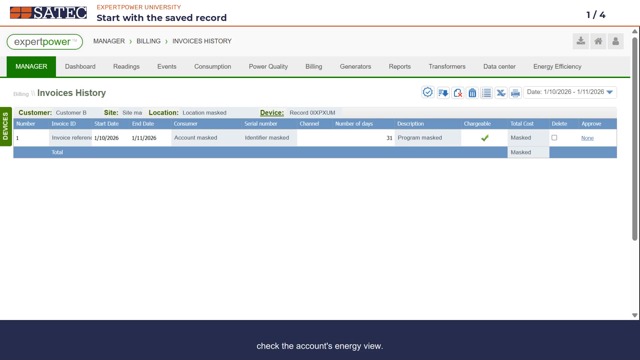
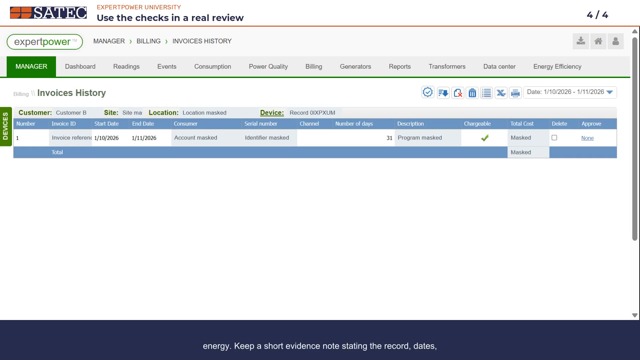
In Manager, choose Billing → Invoices History. Confirm the intended billing account. Read Start Date, End Date and Number of days from the actual saved row. The top range is a lookup context; it does not establish the saved invoice’s period. Leave approval and deletion controls untouched.
2. Check the loaded Billing Data period
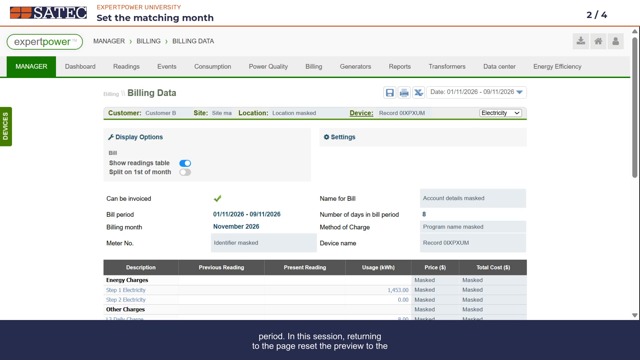
Choose Billing → Billing Data for the same account. Read Bill period and Number of days in bill period after the page loads. In the recorded example, reopening the page reset it to 1–9 November 2026 and eight days. A different preview period does not establish an error in a saved invoice.
3. Apply a complete named month
Open Date → Fixed Time, choose October and 2026, then Update. Check the loaded result: 1 October–1 November and 31 days. The existing-invoice message is a prompt to check history before proposing a run. It does not establish that the invoice passed review.
4. Inspect the component readings
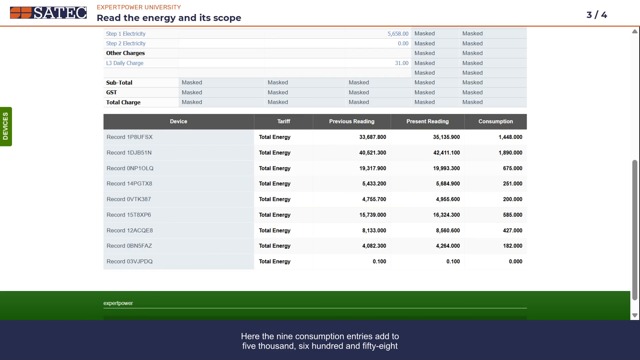
Expand Display Options and enable Show readings table. Scroll to the component rows. In this example, their consumption values sum to 5,658 kWh, matching the preview’s energy usage. The daily charge quantity is 31 days. Prices and totals are concealed, so no tariff or financial arithmetic is validated.
5. Compare the same account in Consumption
Choose Consumption → Electricity → Total. Confirm the selected account and 1 October–1 November period, with Days resolution. Open the date panel to verify midnight at both boundaries. Active energy import shows previous 131,667, present 137,325 and usage 5,658 kWh. This agrees with the preview, not necessarily the unseen issued invoice.
6. Record unresolved questions
Keep an evidence note with the account, period, quantity, units, source and unresolved issue. Rates, estimates, invoice content and delivery need separate evidence before a release decision.
Apply the checks to other cases
A view appears to disagree
Check the account and the actual applied boundaries first. In this recording, the apparent disagreement was a different preview window. Do not call it an invoice error without checking the saved record.
A shared meter has been replaced
Review the relevant old and new records and all affected units together. Verify membership, phase/channel mapping and actual data before deciding that a duplicate record or duplicate bill exists. Any correction uses its own authorised operating procedure.
Data appears to be missing
Check the configured interval, actual timestamps, day boundaries and time basis. Distinguish absent source records from a processing delay. A blank chart does not prove zero use; reprocessing cannot recreate a source record that was never received.
The totals match
Agreement between two views is useful evidence for the stated account and period. It does not approve the tariff, an estimate, the issued PDF or delivery. Keep those checks separate.
Keep an evidence note
- Account and record scope
- Saved invoice start, end and day count
- Applied preview start, end and day count
- Energy quantity and units
- Component mapping and source if needed
- Observed agreement or unresolved mismatch
- Issued document and delivery checks still required
Transcript and references
This Expertpower lesson shows how to review an existing billing period. We will find the saved invoice record, set the matching month in Billing Data, then check the account's energy view. Names, identifiers and financial values are concealed. The dates and energy values remain the actual recorded values.
In Manager, open Billing, then Invoices History. The selected account appears in the context row above the table. Check that account before interpreting the result. A meter, a member channel and a virtual billing account can represent different scopes. A similar name alone is not enough to establish that they are the same billing record.
In this example, the saved row starts on the first of October and ends on the first of November, twenty twenty-six. The row shows thirty-one days. Read those actual row dates. The range at the top is a separate lookup context and is not proof of the saved invoice's period. The row also has approval and deletion controls. We leave those untouched. Finding a saved record does not establish who created it, whether it was sent, or whether its contents are correct.
Open Billing, then Billing Data for the same account. Check the device name again and read the loaded Bill period and Number of days in bill period. In this session, returning to the page reset the preview to the first through the ninth of November, with eight days. That is a different period from the October record. It is not evidence that the saved invoice is wrong.
Open the Date control. This billing page offers Time Range and Fixed Time. Time Range provides separate start and end dates. For our complete named month, choose Fixed Time. Select October and the year twenty twenty-six. The preview below still shows the old period until the selection is applied.
Use Update, then check the loaded page. Our October period runs from the first of October to the first of November and shows thirty-one days. The end is the start of the following month. Check the actual dates and the day count together after every account or page change. A selected month in an open panel is only an intermediate step.
The status now says An invoice exists. Check history before proposing another run. This viewing lesson does not save or recreate an invoice. The existing-record indicator also does not approve the prices, the source data or the issued document.
In Billing Data, open Display Options and enable Show readings table. Scroll down to see the components used in this preview. Here the nine consumption entries add to five thousand, six hundred and fifty-eight kilowatt-hours. The charge table above shows that same energy usage, while the daily charge quantity is thirty-one days. We have concealed prices and financial totals, so this demonstration cannot validate their arithmetic or tariff.
Next, open Consumption, Electricity, then Total. The selected record remains the same billing account. Confirm the first of October to the first of November at the top, with Days as the display resolution. Open the date panel to check midnight at both boundaries, then close it without changing the range. In Consumption Summary, read Active energy import, in kilowatt-hours. The usage is five thousand, six hundred and fifty-eight. The previous and present registers differ by the same amount. That agrees with the Billing Data preview for this account and month. It does not prove the contents of the issued invoice PDF.
The daily bars and Consumption Table let you look more closely at the period. Read the quantity and units before comparing values. A whole virtual account can contain several member records. One member's total is only part of the account; establish its mapping and contribution before making that comparison.
An empty panel, a flat section or a missing bar is a prompt to check the selection, dates and source data. It does not by itself prove zero consumption or a meter outage. The underlying meter's logged records and the processed consumption view are different sources. When an investigation needs them, check the configured interval and the actual timestamps, including the time basis and period boundaries.
The embedded network operator's playbook uses these checks as a sequence: establish the account, read the saved period, align the preview, then trace the energy. Keep a short evidence note stating the record, dates, units, source and what remains unresolved. The working playbook below this lesson follows the same order.
Two documented cases explain why the sequence matters. After a shared meter replacement, old and new records can require investigation together. Check their actual data and the affected units before treating an old record as harmless or deciding that a duplicate bill exists. In a missing data case, distinguish absent raw records from a processing delay. Reprocessing cannot recreate a source record that was never received. Any operational change needs its own authorised procedure.
Matching the account, days and energy is one part of billing review. Rates, invoice readings, estimates, document content and delivery each need their own evidence. The issued invoice PDF is a separate check. A green indicator on this screen is not a release decision.
For your next review, begin with the saved record, confirm the account and dates after each navigation, and compare like with like. Stop at any unresolved mismatch and record the evidence for investigation. That gives the operator a clear question to resolve before anyone changes or releases an invoice.
Checked against the recorded interface and current operator procedures on 9 November 2026. The supplied Operation Manual billing pages were used as a local reference; interface versions differ.