
ETC II · LIGHTS AND RESPONSES
What do the ETC II lights and error responses tell me?
Quick Answer
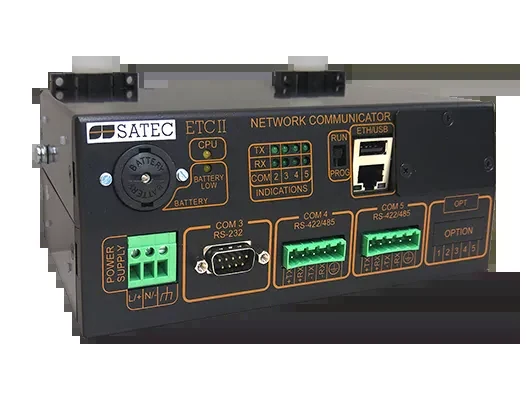
Start with the yellow CPU light. A steady one-second flash means the ETC II is running normally. Two short flashes means service mode, and three short flashes means a critical error. In both of those states the gateway is not operating.
The manual describes the green RX and TX lights as showing receive and transmit activity on a port. SATEC Australia's advice: treat them as a sign of traffic only, not proof that a meter gave a valid answer.
If a client gets Modbus exception 10, "Gateway is busy", the manual gives one cause: another client is already using the same device while shared access is turned off.
The CPU Light
| CPU light | What the manual says |
|---|---|
| Flashes for one second, then a one-second pause | Operational and working normally |
| Two brief flashes, then a one-second pause | Service mode; not operational |
| Three brief flashes, then a one-second pause | Critical error; not operational. Contact your local distributor for servicing |
Source: BG0594 p. 13.
SATEC Australia's advice: for an ETC II in Australia, contact SATEC technical support about a critical error (see below).
The BATTERY LOW Light
The second yellow light is BATTERY LOW. See What does the BATTERY LOW light on an ETC II mean?.
RX And TX Lights
The RX and TX lights flash when the ETC II receives or sends data on COM3, COM4 or COM5. A pair is also shown for an optional COM2 cellular module, which the manual lists as future.
The manual describes these lights as showing receive and transmit activity. SATEC Australia's advice: read the actual response or error at the client to know whether a request worked.
The PROG-RUN Switch
The switch must be in RUN for normal operation. The manual describes three modes:
- Run (operational): the gateway runs, and COM3 can act as a slave port for serial-to-serial connections.
- Program (switch in PROG): the gateway keeps running, but COM3 becomes a service port for a terminal program.
- Service: the gateway is not operating. It is entered by a terminal command, or by powering the unit with the switch in PROG.
SATEC Australia's advice: note the switch position as you find it. Do not move it on a working gateway unless that change is authorised.
Modbus Error Responses
The ETC II's own Modbus responses are listed in BG0595 p. 5:
| Code | Meaning in the guide |
|---|---|
| 1 | Illegal function |
| 2 | Illegal data address |
| 3 | Illegal data value |
| 10 | Gateway is busy. Remote access is temporarily unavailable |
If a request has a framing, parity or checksum error, the ETC II does not respond at all.
When password protection is on, a write sent without the password gets exception code 01.
Exception 10, Gateway Is Busy
Shared device access is on by default. If it is turned off, the ETC II rejects extra requests to a device that another client is using. It returns exception 10 until the first client finishes or moves to another device.
The manual does not give any other cause for exception 10. It also does not say what a client receives when a downstream meter fails to answer. The manual therefore does not support reading exception 10 as a sign that a meter is offline.
How Many Clients At Once
The manual gives different figures in different places:
- p. 12, cellular port: "up to 5 simultaneous connections with MODBUS/TCP client applications";
- p. 15: the TCP server "supports eight simultaneous client connections";
- p. 18: the ETC II "can manage up to eight concurrent sessions between master stations and slave devices";
- p. 58, in the COM1 Ethernet port specification: "Number of simultaneous connections: 5".
The 5 on p. 12 is for the cellular port. For Ethernet, the conflict is between 5 in the p. 58 port specification and 8 on pp. 15 and 18. The manual does not say which Ethernet figure is correct, or what happens to a client over the limit. SATEC Australia's advice: if faults appear only when more clients connect, record how many clients were connected.
The Self-Diagnostic Register
BG0595 p. 15 lists a device self-diagnostics register at 44326–44327, in the guide's own numbering. BG0595 p. 5 explains how your client may need to offset that address.
The ETC II supports Modbus read functions 03 and 04, and function 04 can be used in the same way as 03. Reading the two registers as one 32-bit value gives the flags. When read, a bit set to 1 means that fault has been logged at least once since the last reset. The guide decodes the bits on p. 26. They include permanent fault, RAM/data error, watchdog resets, power down, device reset, configuration reset, RTC fault, configuration fault and Master EEPROM fault.
The guide says writing 0 to this register clears a fault bit. SATEC Australia's advice: read this register only, so the logged faults are kept as evidence.
The ETC II also keeps an event log that records status-change events and device diagnostics.
Gateway Fault Or Meter Fault?
SATEC Australia's advice: these checks narrow the problem down but do not settle every case.
- CPU light not on its normal one-second flash: the manual says service mode and critical error are not operational, so look at the gateway first.
- CPU light normal, ETC II answers at its own address, meter does not: check the meter's address and route. See How does the ETC II decide which port a meter request goes to?
- Values come from the ETC II's Data Server rather than straight from the meter: check each record's status and age before treating it as fresh. See the ETC gateway guide.
What To Send Support
SATEC Australia's advice: contact SATEC Australia technical support through our contact form. Include:
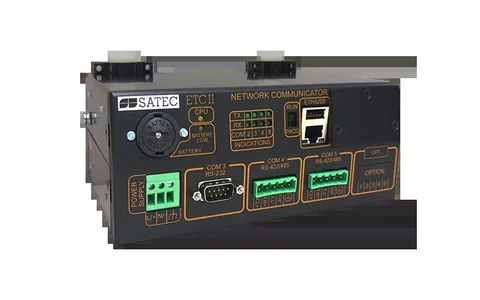
- The CPU light pattern and the PROG-RUN switch position as found.
- The exact Modbus exception code or timeout, the address requested and the client used.
- The value read from the self-diagnostic register, if you have it.
- The ETC II label details, firmware version and how many clients connect.
Manuals And Source Pages
- ETC II Installation and Operation Manual, BG0594 Rev. A5: features p. 6; lights and switch p. 13; modes p. 14; client connections pp. 12, 15 and 18; shared access p. 17; specifications p. 58.
- ETC II Modbus Communications Protocol Reference Guide, BG0595 Rev. A2: exception responses and register numbering p. 5; password p. 6; diagnostics register p. 15; diagnostic bits p. 26.
Source review: 22 November 2026.