
PAS · CONNECTION AND DATA
What should I collect when PAS won't connect or data is missing?
Quick answer
SATEC Australia's advice is to start by recording what you see, and to change nothing in the meter. The manual says the protocol and port settings in PAS must match the settings in the meter. SATEC Australia's advice is to check those settings first when PAS won't connect, and to start with the System Log, the logs you selected and the date range when log data is missing. SATEC Australia's advice is to collect the items below before you contact us.
What to record first
SATEC Australia's advice is to record these details:
- The exact message PAS shows. Copy the wording or take a screenshot.
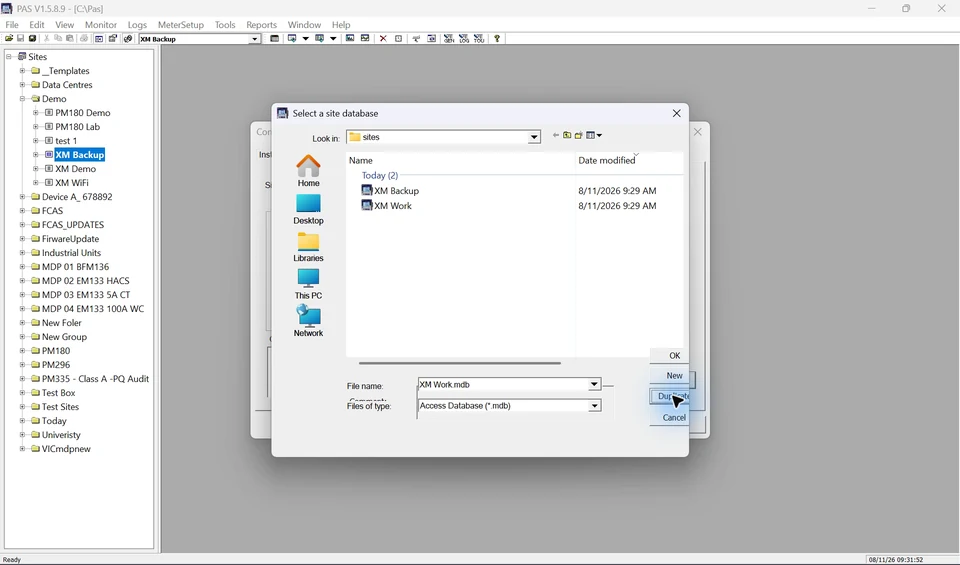
- Your PAS and Windows versions. In SATEC Australia's recorded installation, PAS showed its version in the title bar.
- The meter. Record the model, order code and serial number from its label, and its firmware version if you can read it.
- How PAS connects. PAS can connect through a serial port, a modem, the Internet or USB. Record which one, and whether a gateway is in the path.
- The site's communication settings, as entered in PAS. For serial, that's the COM port, baud rate, data format and protocol. For the Internet, it's the IP address, host port and protocol. In both cases, record the device address, response time-out, break time-out and retries.
- When it last worked. Record anything that changed since, such as a new PC, a Windows update, a moved cable, a changed network or a replaced meter.
When PAS won't connect
SATEC Australia's advice is to compare each PAS setting with the meter's own settings, without changing the meter. The manual says the protocol and port settings in PAS must match the settings in the meter.
- Serial: the baud rate, data format and protocol must be the same as the meter's. SATEC Australia's advice is to record which PC COM port the site uses.
- Internet: PAS fills in a default port for each protocol. Because the port must match the meter's setting, a meter set to a different port needs that port in the site.
- "Communication failed" happens often: the manual says the Break Time-out may need increasing. It matters only for Modbus RTU, DNP3 and IEC 60870-5. SATEC Australia's advice is to note the value before you change it.
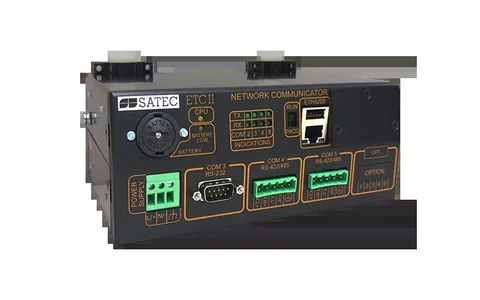
- Through a gateway: SATEC Australia's advice is to read How do I connect and configure a SATEC ETC gateway?, which covers connecting and configuring the gateway.
A reply to a network ping shows that an address can be reached; it doesn't show that the meter is responding to PAS. SATEC Australia's PAS lesson Create a blank site and check the connected meter shows the PAS Communication Test with an EM235.
When the USB connection or PAS itself fails
The PAS Installation Guide gives these causes for a USB driver that didn't install or has stopped working:
- PAS was installed without Run as administrator;
- a SATEC USB device was connected while PAS was being installed;
- there was a major Windows update.
The guide also says some Windows configurations need PAS to be run as administrator each time, because of database (ODBC) driver access. SATEC Australia's advice is to involve whoever manages the PC before reinstalling a driver or changing how PAS runs.
For Windows 10, the guide's driver instructions turn off Windows driver signature enforcement, which is a Windows security setting. SATEC Australia's advice is not to turn it off, and to contact us so we can tell you what is currently available for your PAS and Windows versions. The guide covers PAS v1.5.1 and higher on Windows 7, 8 and 10, and doesn't mention Windows 11.
When log data is missing
SATEC Australia's advice is to work through these checks:
- Check the System Log. When the Upload Scheduler fails to retrieve data, or data is missing, PAS writes an error to the System Log, under View > System Log. Copy the entries for the dates concerned.
- Check what was asked for. Record which logs were ticked under Select Logs, and the From and To dates.
- Check the right file and table. A log database can hold several logs as separate tables, and a log is opened by selecting its table. Record which database the upload went to, open the table you need, and check the first and last record times.
- Check whether the scheduler was running. The manual says On-line must be checked all the time for the Upload Scheduler to keep running.
- Check what the meter records. The manual refers you to each meter's own manual for detail on that meter, including the logs it records.
The meter's own diagnostics can be viewed in PAS under Monitor > Device Control > Device Diagnostics with On-line checked, and their details are in the meter's manual. The Clear button there clears the meter's device diagnostics. SATEC Australia's advice is to record what the diagnostics show and not to click Clear.
Getting help
Contact SATEC Australia technical support through our contact form. SATEC Australia's advice is to send the items listed above, together with the site's .mdb file name.
Manuals and source pages
- PAS Getting Started, BG0337 Rev. A2:
- Section 1.1.2 File Format and section 1.1.5 General Note, printed page 5 (PDF 5).
- Section 2.2 Setting up Communications, printed pages 7–9 (PDF 7–9).
- Chapter 3 Setting Up the Device, printed page 10 (PDF 10).
- Chapter 4 Device Control, printed pages 11–15 (PDF 11–15).
- Chapter 6 Retrieving Recording Files, printed pages 21–23 (PDF 21–23).
- Section 7.1.1 Opening a Log File, printed page 25 (PDF 25).
- PAS Installation Guide, BG0608 Rev. A1:
- Chapter 1 Installation, page 3 (PDF 3).
- Chapter 2 Troubleshooting, pages 5–7 (PDF 5–7).
- Both are available from the SATEC Australia manuals and datasheets page. Evidence checked 22 November 2026.
Source review: 22 November 2026.