
RGM180 · IDENTIFY
Which RGM180 display do I have, and which instructions apply?
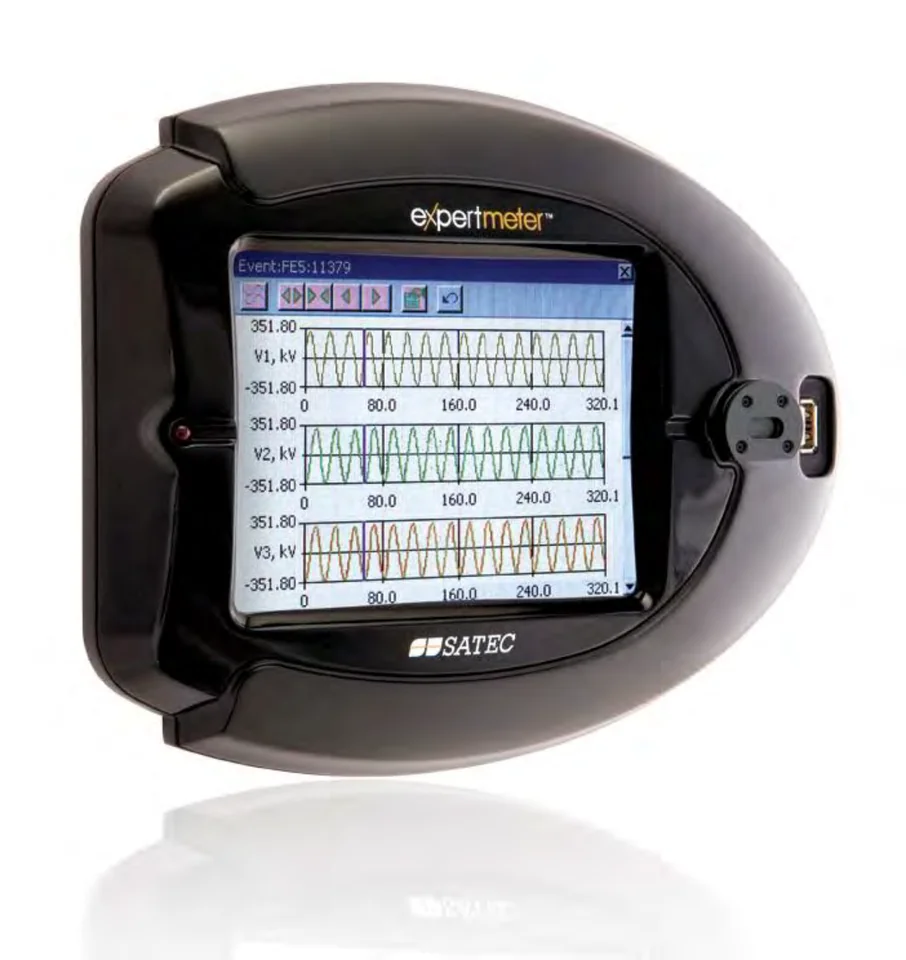
The RGM180 series provides an interface to monitor and configure SATEC devices. It uses a colour touch screen. SATEC Australia's advice: the RGM180 and the RPM072 remote display are different products, so don't use the RPM072 remote display article for an RGM180.
The instruction that applies
The RGM180 Display Series Quick Start Guide, BG0509 Rev. A2, April 2012, is published on the SATEC Australia Documents page. It was prepared for the RGM180-G1 and RGM180-G3. The RGM180 datasheet gives the order string.
SATEC Australia's advice: for anything about the meter the display is connected to, use that meter's own manual.
G1 or G3?
| RGM180-G1 | RGM180-G3 | |
|---|---|---|
| Name in the guide | Local Graphic Display | Network Graphic Display |
| Host devices | A single host processor | Multiple host processors (up to 32) |
| Interface | RS-485 | 10/100Base T Ethernet or RS-485 |
| Power | Powered directly from the device | Power over Ethernet (PoE) and/or an external AC/DC adaptor |
In the order string, G1 is "Direct connection to PM17x - 15 pin D-Type connector" and G3 is "Remote connection - 15 pin D-Type and RJ-45". The guide lists the Ethernet communication port as RGM180-G3 only.
Choosing the connection drawing
The guide has connection figures for the PM17x, RPM17x, ezPAC, EM720, PM130 PLUS and EM133, and for regular and PoE Ethernet connections. The IR communication port is for the PM180 only.
SATEC Australia's advice: use the figure for the meter actually installed, and don't adapt a figure drawn for a different meter.
Panel fit
Figure 10 of the guide shows a 4-inch round or DIN 43700 92 x 92 mm cut-out, in a switchgear panel up to 1/4 inch (6.4 mm) thick. Figure 9 shows the instrument dimensions.
SATEC Australia's advice: check Figure 9 against the space on the panel door before you order.
Settings on the display itself
The guide says "The device allows configuration through the USB or Ethernet at Modbus address 99". Display Setup has these pages:
- Display: brightness, standby mode and language.
- Calibration: touch screen calibration.
- Network: IP address, subnet mask, default gateway and DHCP.
- Serial: baud rate, data format, port direction and response time.
The Factory page shows the factory-set definition of the RGM. The guide says "It is not recommended to change these settings".
Instrument Setup screens
The guide says "The RGM connects to up to 32 devices. Each device has its own instrument setup definition". Instrument Setup covers wiring mode, CT primary and nominal frequency, demand setup, time adjustment, reset setup ("reset parameters or clear logs") and communications.
SATEC Australia's advice: treat these screens as changing the connected meter. Before anyone uses them, save the meter's as-found setup in PAS and follow the meter's own manual. If you are only checking readings, stay in the data screens.
What the display can show
The data groups are real-time measurements, harmonics, energy and logs. In logs, "only Event Log is available".
SATEC Australia's advice: to retrieve other records, use PAS with the meter itself.
If it won't respond or connect
The guide's troubleshooting section says:
- If the screen does not respond to touch, perform screen calibration (Display Setup).
- If the display does not connect to the remote meter, make sure that the Modbus and/or IP address specified in the Connection Manager match the remote meter address.
- If the display does not connect through the Ethernet connection, make sure that the installed IP address is set correctly (Display Setup, Network Setup). You may also need to contact your system administrator to obtain a legal address in a specific network.
What to record before contacting support
SATEC Australia's advice: send us these details.
- The full order string from the label.
- The meter or meters the display is connected to, with their model and address.
- How it is connected: direct mounting, cable, RS-485 or Ethernet, and how it is powered.
- What the screen shows, with a photo, including any message such as "Connecting".
- The display's network or serial settings as found, if you can see them.
- What changed just before the problem started.
Getting help
Contact SATEC Australia technical support through our contact form.
Source review: 22 November 2026.